Browse documentation
Repositories and Changes
Import and sync Git repositories
Import GitHub or generic Git repositories into Vex and keep an explicit remote synchronization contract.
On this page
GitHub import with sync metadata
Import a GitHub repository into an organization Home path and attach the information Vex needs to keep it synchronized. For the guided interactive path, start with vex repo import --org <org-slug>.
vex import github <owner>/<repo> \
  --org <org> --path apps/<slug> --virtual-repo <slug> \
  --github-app-installation-id <id> \
  --sync-branch main --sync-mode bidirectional --yes
Use --skip-sync when you want a one-time import without a continuing external-sync contract.
Protect coordinated Home changes in GitHub
A Home Change can open pull requests in more than one GitHub repository. Vex posts a Vex / coordinated landing Check Run on every component pull request so reviewers can see that the pull requests must land together in Vex.
GitHub only blocks its Merge button when a repository rule requires that check. A repository owner controls that protection. Vex reads the effective rules for the target branch and explains when setup is missing, but it does not request permission to create or edit your repository rulesets.
Before starting, submit one coordinated Home Change so GitHub has seen the Vex check name. GitHub only offers recently reported checks in the required-check picker.
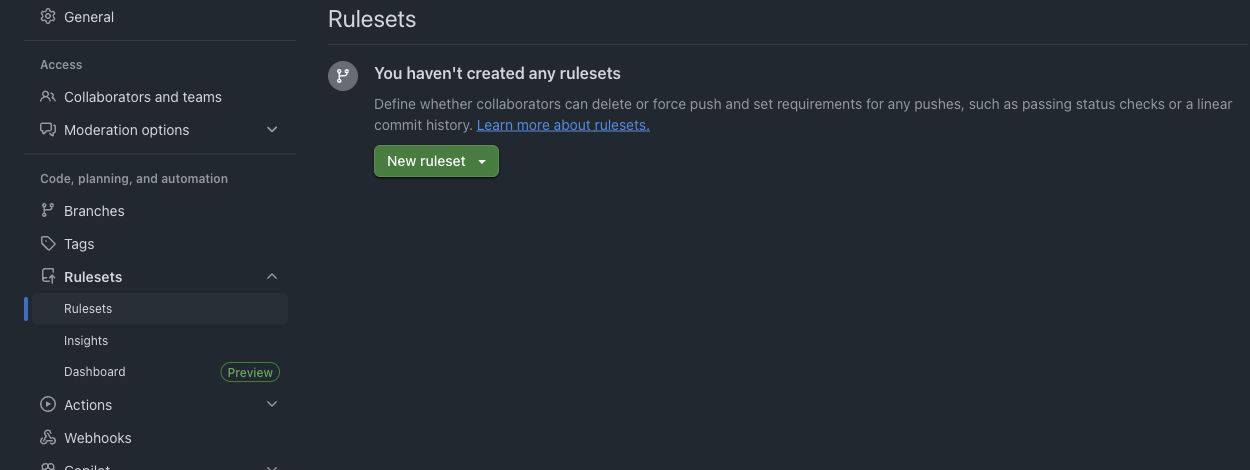
- Open each affected repository in GitHub, then choose Settings → Rules → Rulesets and New branch ruleset.
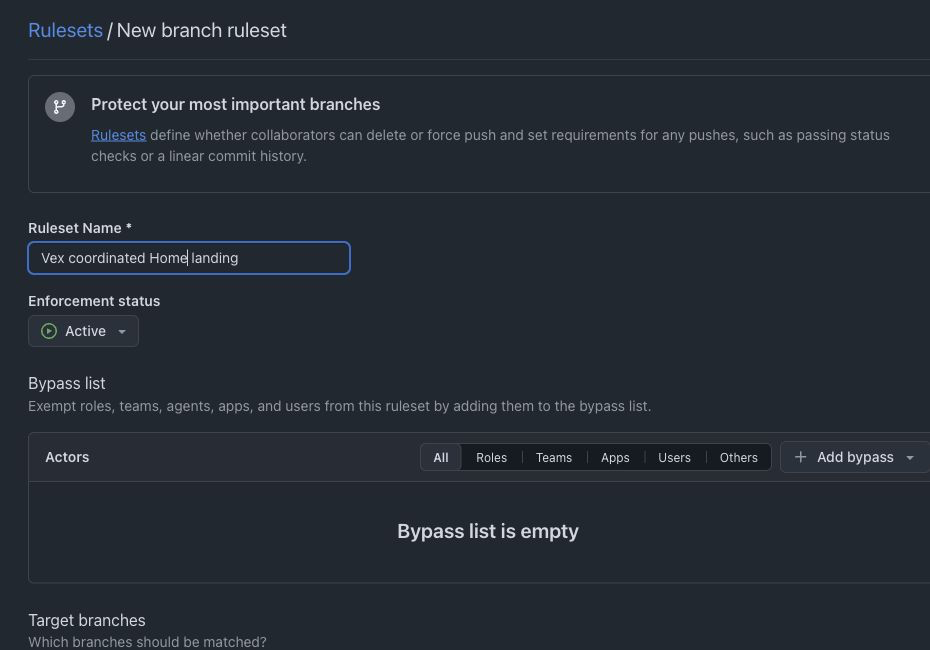
- Name the rule
Vex coordinated Home landing, set Enforcement status to Active, and leave the bypass list empty unless your organization has an explicit exception policy.
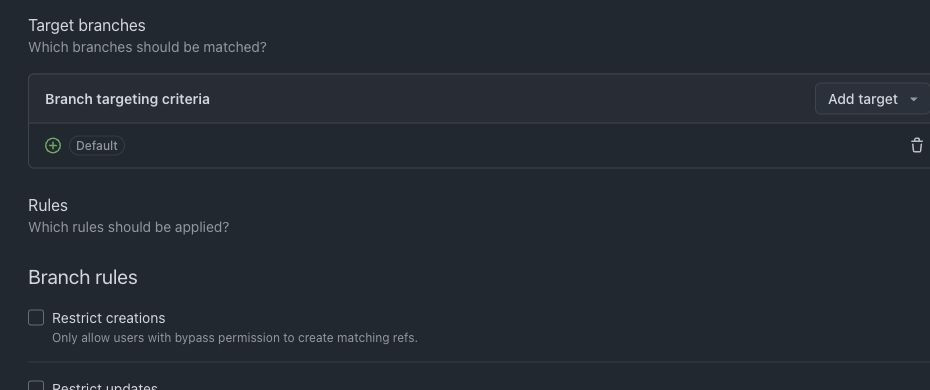
- Under Target branches, add the repository’s default branch, or add the exact target branch used by the Vex Change.
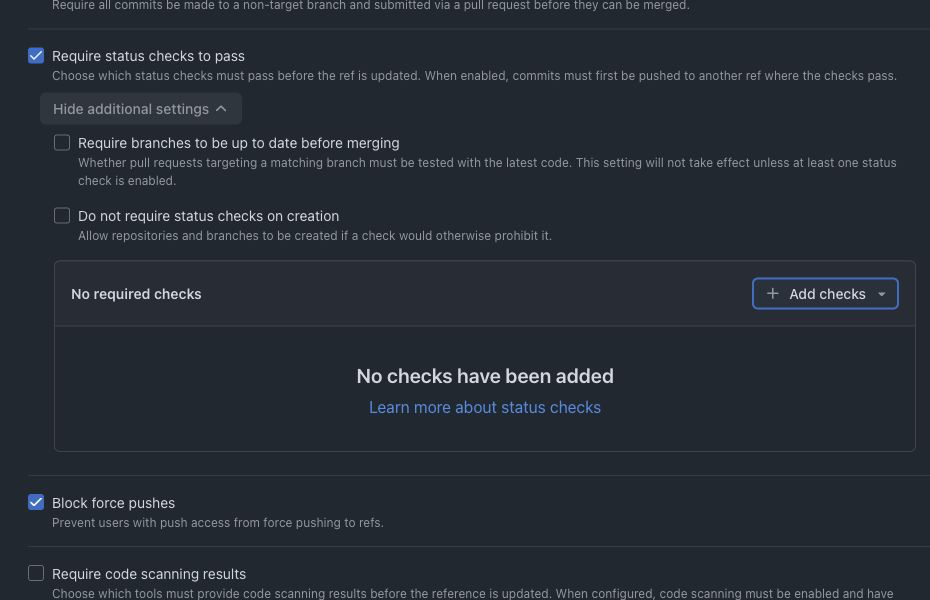
- Enable Require status checks to pass, choose Add checks, search for
Vex / coordinated landing, and select the result published by the Vex GitHub App. Then create the ruleset.
Repeat this for every GitHub repository that a coordinated Home Change can touch. GitHub Team and Enterprise organizations can instead use one organization ruleset that targets all of those repositories. Vex reads both repository and organization rules that apply to the target branch.
The next Vex coordination sync or pull-request event rechecks the effective rule. When every affected target branch requires the Vex check, the setup banner on the Change disappears. Ordinary pull requests receive a passing coordination check; only multi-repository Home Changes remain blocked for coordinated landing in Vex.
Why Vex does not configure this for you
GitHub’s write permission for repository administration covers much more than this one check. Keeping that permission out of the Vex App means your repository owners remain the only people who can change merge protections, bypass policy, and branch governance. Vex needs only read access to verify the rule and Checks write access to publish its own result.
For GitHub’s full ruleset controls and plan availability, see Creating rulesets for a repository.
Generic HTTP(S) Git
Import a generic Git source from a URL or local path. Add sync settings only when the source should keep participating in a two-way or configured sync workflow.
vex import git https://git.example.com/team/repo.git \
  --org <org> --path apps/<slug> --virtual-repo <slug> --yes
Preview a direct generic import with --dry-run before adding --yes. The import flow is separate from day-to-day native Vex work; see source control for that workflow.
What Vex stores
Vex keeps the imported repository’s provider identity, selected branch, sync mode, and the baseline that lets a later sync reconcile external changes. GitHub connections additionally use the authorized App installation rather than a personal shell token.
Manual sync runs
Use the repository’s sync controls or CLI workflow to inspect and reconcile connected state. For submitted changes, use vex sync to fetch the selected target and update the server review state. For materializing a GitHub project into a monorepo folder, use GitHub materialization.